README.HTML / THE FROSTBYTE FIELD GUIDE
A place for the files.
A say in how they get there.
Search a model hub. Pick a few files. Send the download to your computer or a connected Mac or DGX. This guide shows what FrostByte does and how to use it.
Current in 0.3.0: IPFS adds selective collection downloads and explicit sharing; AEON Orbit is available to everyone in Interface settings. Transfers is the default view, and the top bar searches transfers and recorded downloads across devices. HuggingFace keeps its own online search. Devices replaces DGX Spark and saves multiple Mac/DGX companions with model cards, hardware details and separate storage. Transfers combines jobs from every connected device; each HF model has one expandable card. HF + device uses matching public files already shared on one selected companion, with HF filling missing pieces and a final integrity check. Settings offers manual and optional daily update checks. Publisher settings add an optional protected identity with a recovery backup. Save its phrase privately; creating an identity does not publish files.
Jump to a chapter
01 / What FrostByte does
FrostByte brings BitTorrent, HuggingFace and IPFS downloads into one desktop app. Use it to collect model weights, pick up a tokenizer or config, or download ordinary files such as documents, videos, software and archives. Choose which files to fetch and where to keep them.
Downloads can run on your Mac or Windows PC. If you have another Mac or a DGX, an optional companion can do the downloading there while you manage it from the desktop. Frigid is not required.
| Source | What happens | You need |
|---|---|---|
| HuggingFace | Search the Hub, select a repository revision and download selected files over HTTPS. | Internet access. Restricted repositories can also require a token and publisher approval. |
| BitTorrent | Open a .torrent or magnet link, review its contents and transfer selected files with peers. | A valid source and peers with the required data. FrostByte does not supply or endorse the content. |
| IPFS | Preview an immutable CID or IPFS link and download the selected files as one collection. | A reachable provider with the requested blocks, plus space for final files and the IPFS cache. |
02 / Your first download
- Install the public beta. Use the download desk to select the build for your computer. Review the installation notes below.
- Review the welcome screen. Accept the beta terms to continue. The separate diagnostics checkbox is optional and starts unchecked. Your acceptance is remembered on this computer until those documents change.
- Choose a source. Search the HuggingFace tab, drop a .torrent file or magnet/IPFS link into the app, or paste a magnet or CID into the top search bar.
- Review the files and destination. Choose the files you need, confirm This Mac / This PC or the selected remote device, and check the folder before starting.
- Follow the transfer, then find your files. Watch Transfers for both local and remote jobs; filter by device when needed. Completed items appear in My Models or Torrents.
One request, one destination. A registered folder is a storage option. A download uses the folder selected for that request. Choosing a different destination does not move an earlier download.
03 / Find a model. Choose the files.
Open HuggingFace and search by model name or publisher. Use the Hub sort selector for most downloaded, trending, most liked, recently updated or newest models, and reverse the order when useful. Filters narrow the search by publisher, task, format, library, license, language and access requirements. Load more to continue through results.
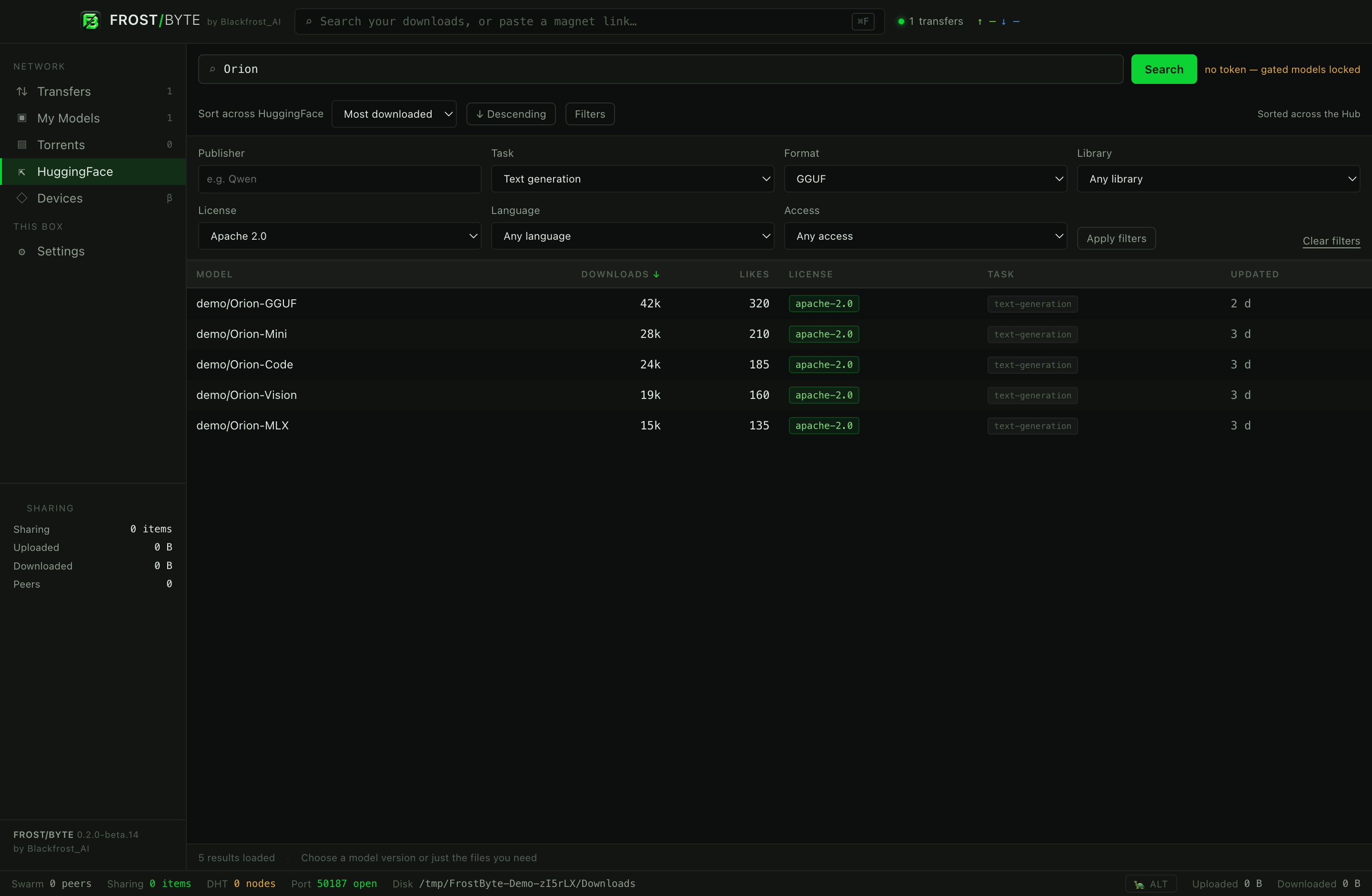
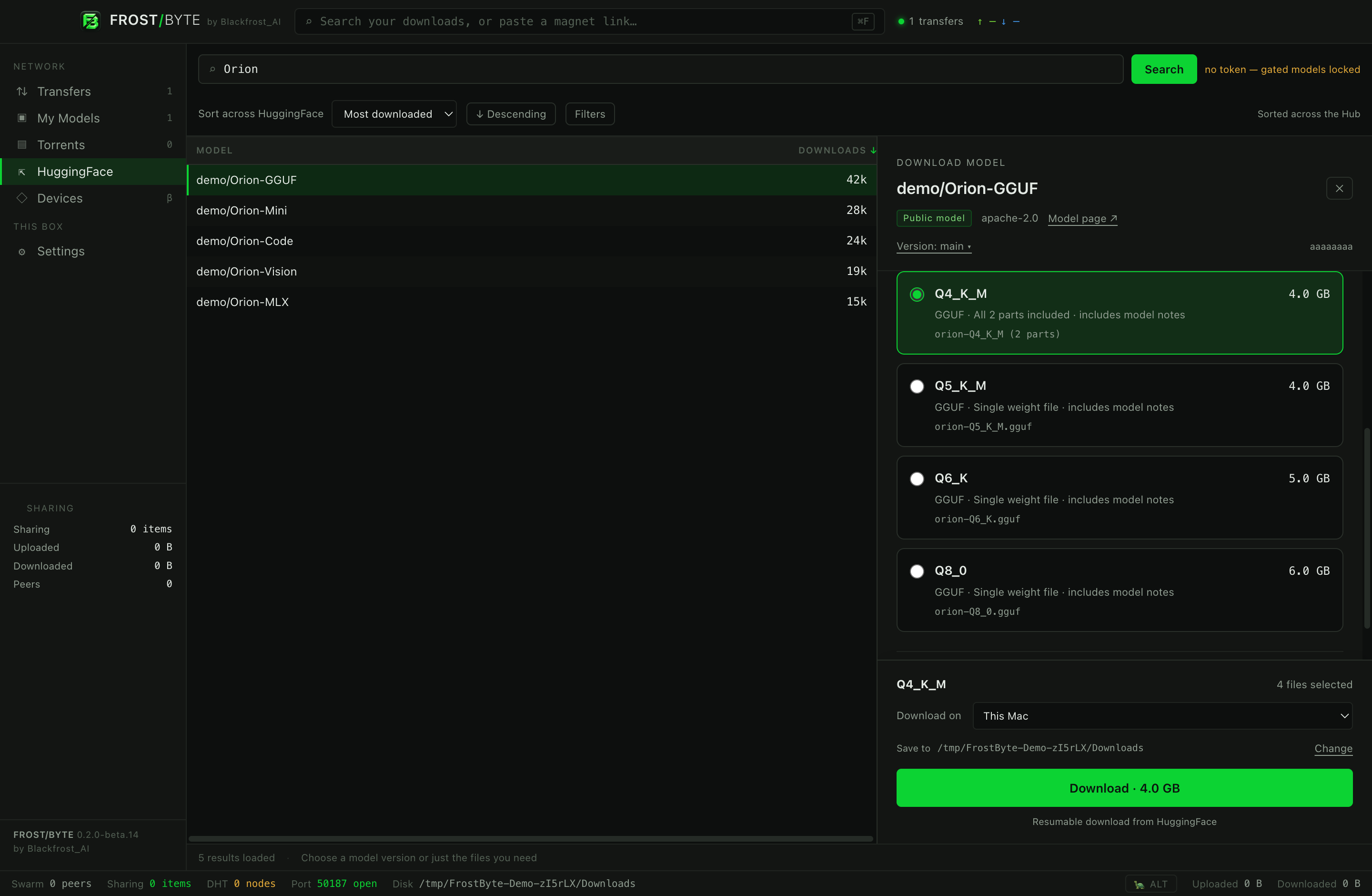
Select a model to open its download panel. The revision selector lets you choose a branch or tag; a download is pinned to the resolved repository commit. This keeps the selected files tied to the version you reviewed.
- GGUF versions: choose a quantization such as Q4_K_M. Recognized split files are grouped into one choice; review every required part. An incomplete recognized split group is unavailable.
- Other weight formats: choose the compatible format shown for that repository. Supporting files can be included with the selection.
- Just a config or tokenizer: use the quick file selections or open the custom file list. Search and sort filenames, select visible results, or clear the selection and check individual files.
- Before Download: check the file count, total size when known, device and folder. A large-download confirmation may appear according to your Settings.
No HuggingFace CLI installation is needed. Public repositories can be browsed without a token. For restricted content, use Settings → HuggingFace to validate and save a token, and obtain any access approval required by the publisher. The app uses the operating system’s protected storage for saved tokens.
Check the model’s own documentation and license. A small config-only download is useful for inspecting or updating a project, but it is not a complete model. A file format or quantization choice is not a guarantee of compatibility with your runtime or memory capacity.
04 / Torrents, magnets and ordinary files
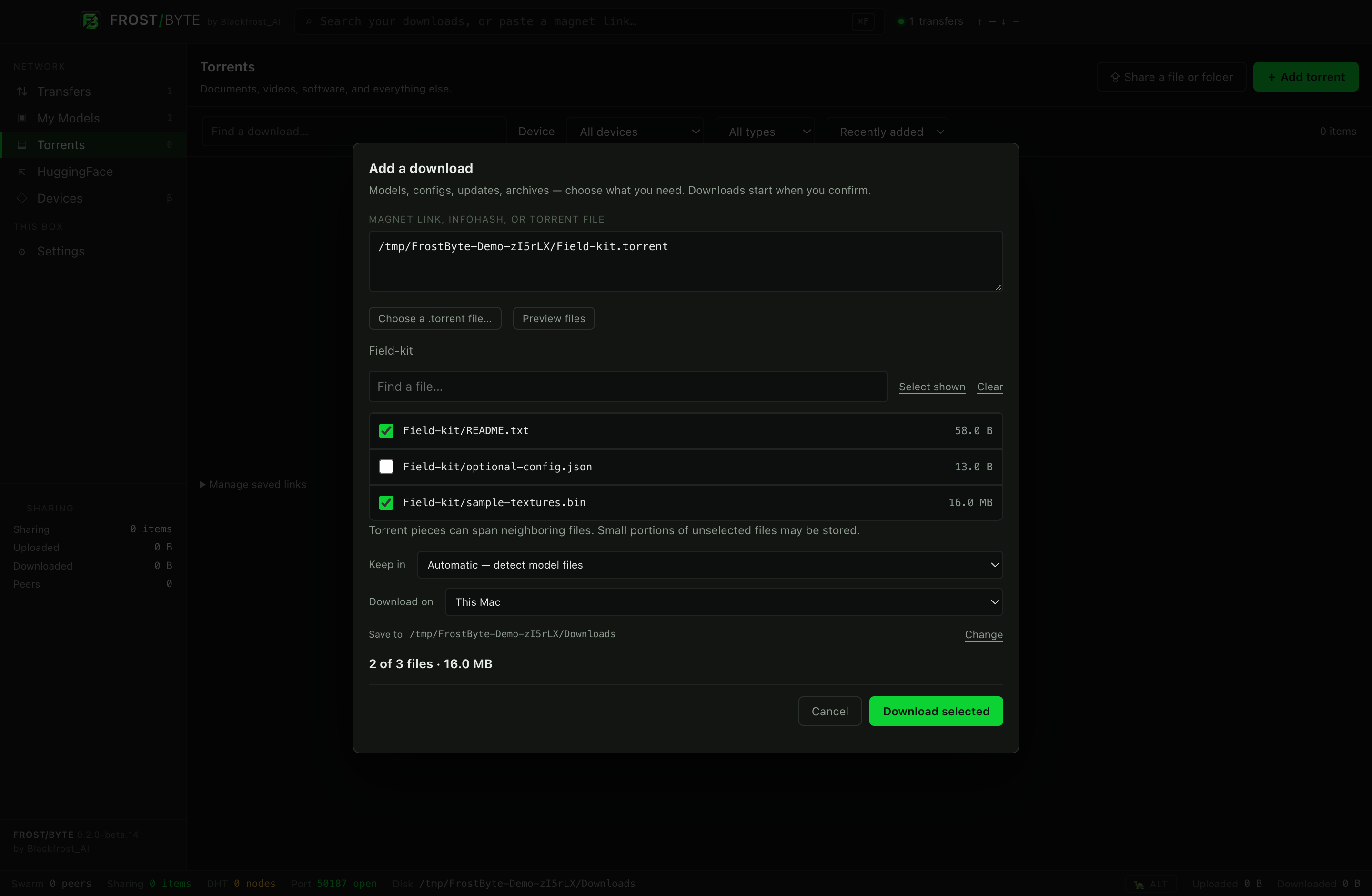
Drag a .torrent file or magnet link into FrostByte to open Add a download. You can also paste a magnet into the top bar. The review shows the source, file list and destination before you confirm. Canceling the review leaves the download unstarted.
- Wait for torrent metadata if the source is a magnet. A magnet cannot show filenames until that metadata is available.
- Keep the files you want checked. Use the file filter or clear the selection to make a smaller download.
- Choose the destination device and one folder. Check the selected size and available storage.
- Start the download. Both local and remote jobs appear in Transfers, labeled with their device and destination.
The Torrents tab holds completed non-model files. Expand Manage saved links for torrent bookmarks and imported lists. The top bar searches your transfers and recorded downloads; a public community directory for legally shared open models is planned for a later phase.
BitTorrent works in pieces. Selecting a file can require small portions of a neighboring, unchecked file when they share a piece. Torrent support in this beta requires v1-compatible metadata. Only download and share material you have permission to use.
IPFS / Choose a collection, keep the files you need
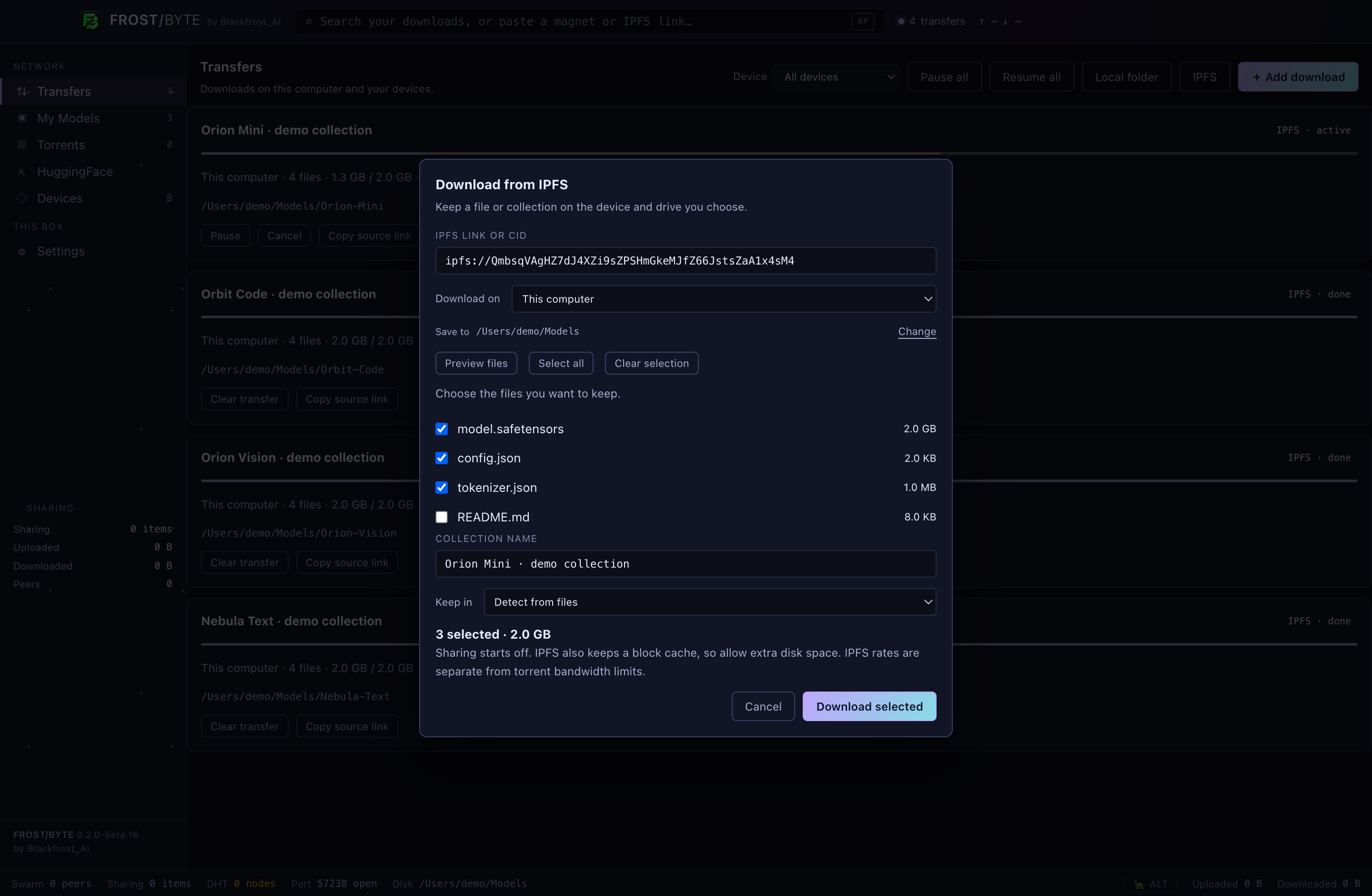
In Transfers, choose IPFS, paste a CID in the top bar, or drop an ipfs:// link. Select this computer or a connected companion with IPFS support, then choose one destination folder. Older companions require their normal update flow.
- Preview the source and review the native confirmation identifying its device.
- Select the files, name the collection and choose My Models or Torrents.
- Confirm the download. One transfer card shows its progress and pause/resume controls.
- Find completed files in inventory. Clearing the transfer row keeps those files.
- Enable Sharing on the completed collection to publish it, then use Copy IPFS link. Turn Sharing off to stop FrostByte serving it. Sharing starts off after restart.
The published CID may differ from the original because only selected files are included. Immutable IPFS links are supported; IPNS and arbitrary gateway URLs are not. Downloading or sharing does not execute a model.
Allow cache space. Final files can go on an external drive, but receive and publishing caches currently use the app or companion state drive. Allow roughly an extra receive copy and another publishing copy. Settings → Interface → IPFS storage can clear the local receive cache after downloads are paused. Remote cache controls and relocation are future work.
IPFS is a public peer network: requests and addresses can be visible to participants. Its bandwidth is separate from torrent caps and schedules. Beta.16 does not pool HF, BitTorrent and IPFS into one transfer.
AEON Orbit / Your look, your device
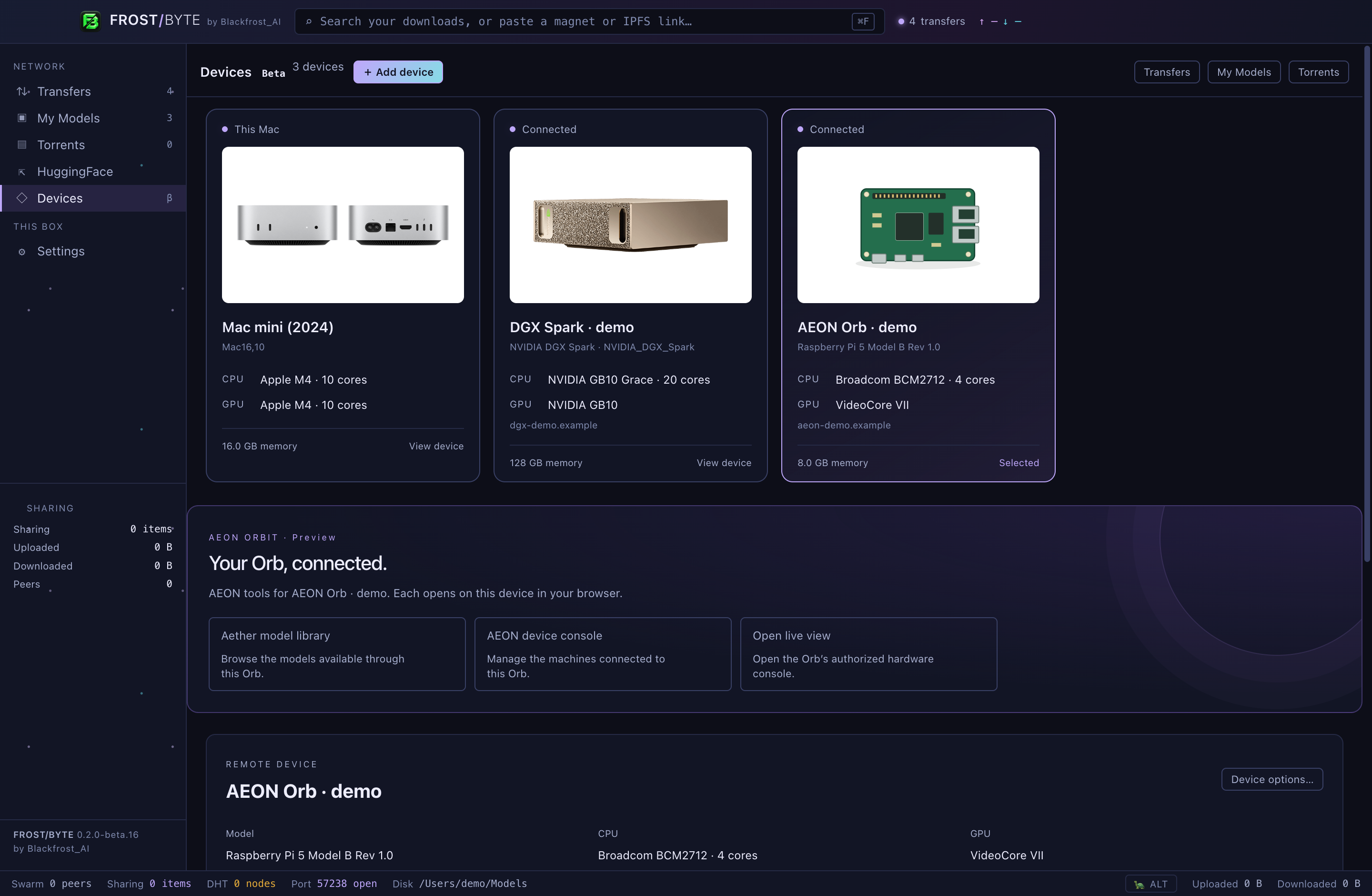
Choose Settings → Interface → Appearance → AEON Orbit. The purple/cyan space theme is available to everyone. It keeps the same tabs, model inventory and transfer controls.
Devices can identify Raspberry Pi hardware. A selected connected Pi reporting the compatible AEON image capability exposes Aether model library, AEON device console and live-view links beneath its card. Each opens a fixed route in your system browser after review, using AEON’s own authentication. The theme itself grants no device access, and a Mac/DGX or disconnected Pi does not gain these controls.
The combined AEON Pi image is paused. The desktop beta includes the integration interface; it does not include a flashable image or claim physical Pi qualification. The representative Pi illustration is not an exact manufacturer photograph. Find AEON on X.
05 / Understand what a transfer is doing
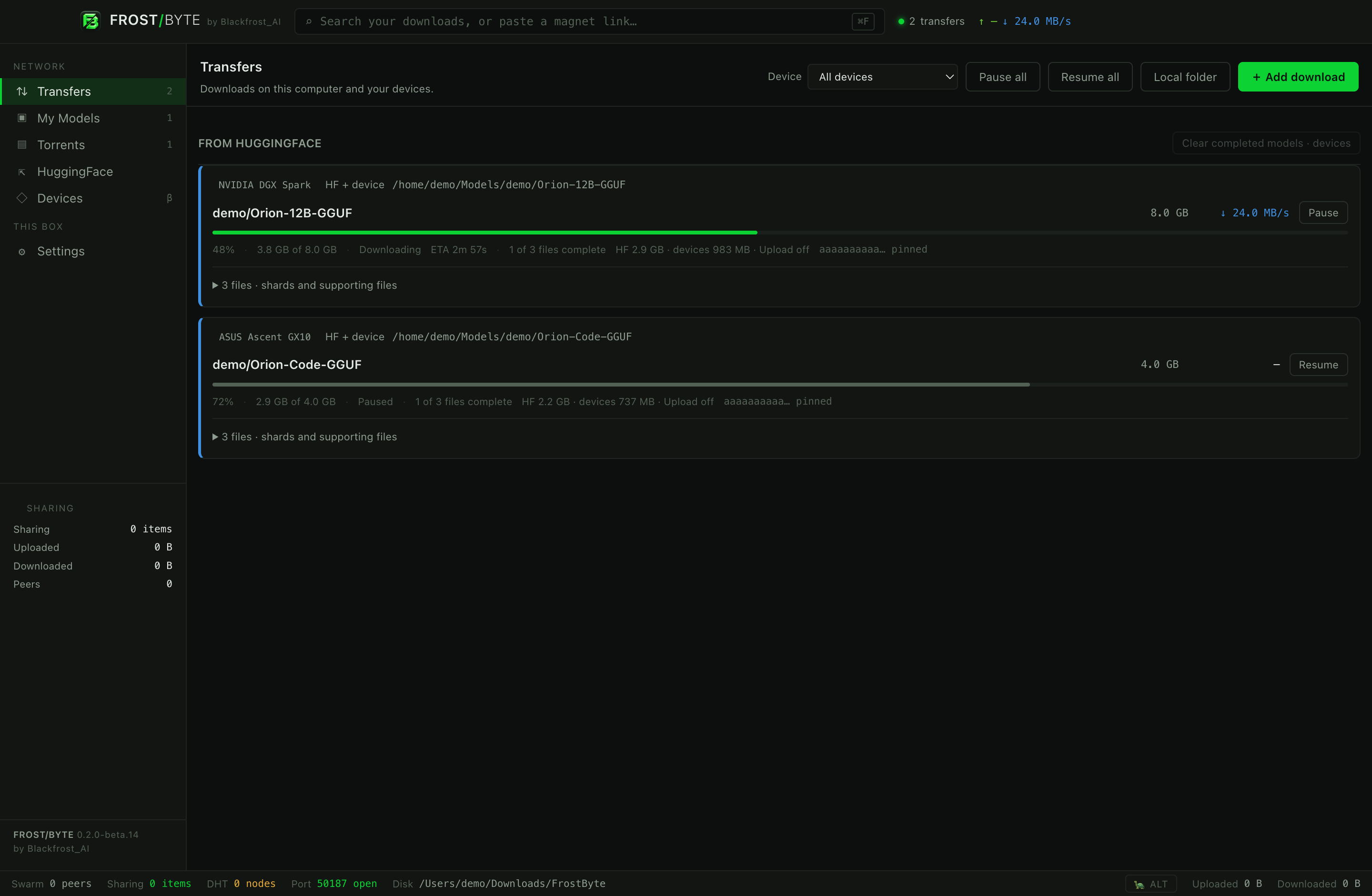
Transfers shows local and remote downloads together, with a device filter and a destination on every card. HuggingFace shards and supporting files for the same model, revision and folder appear in one card. Its progress is weighted by file size, and its speed combines active files; expand it to inspect each file. Torrent cards show progress, downloaded bytes, speed and peers.
Press Cmd/Ctrl+F or type in the top bar and press Enter to search your downloads here. Match model names, recorded file names, folders or devices. Completed inventory remains searchable after transfer history is cleared. Offline devices show last known files; choose a device to narrow the results, or Clear search to return to all transfers. Searching your inventory does not query HuggingFace or publish it to a public index.
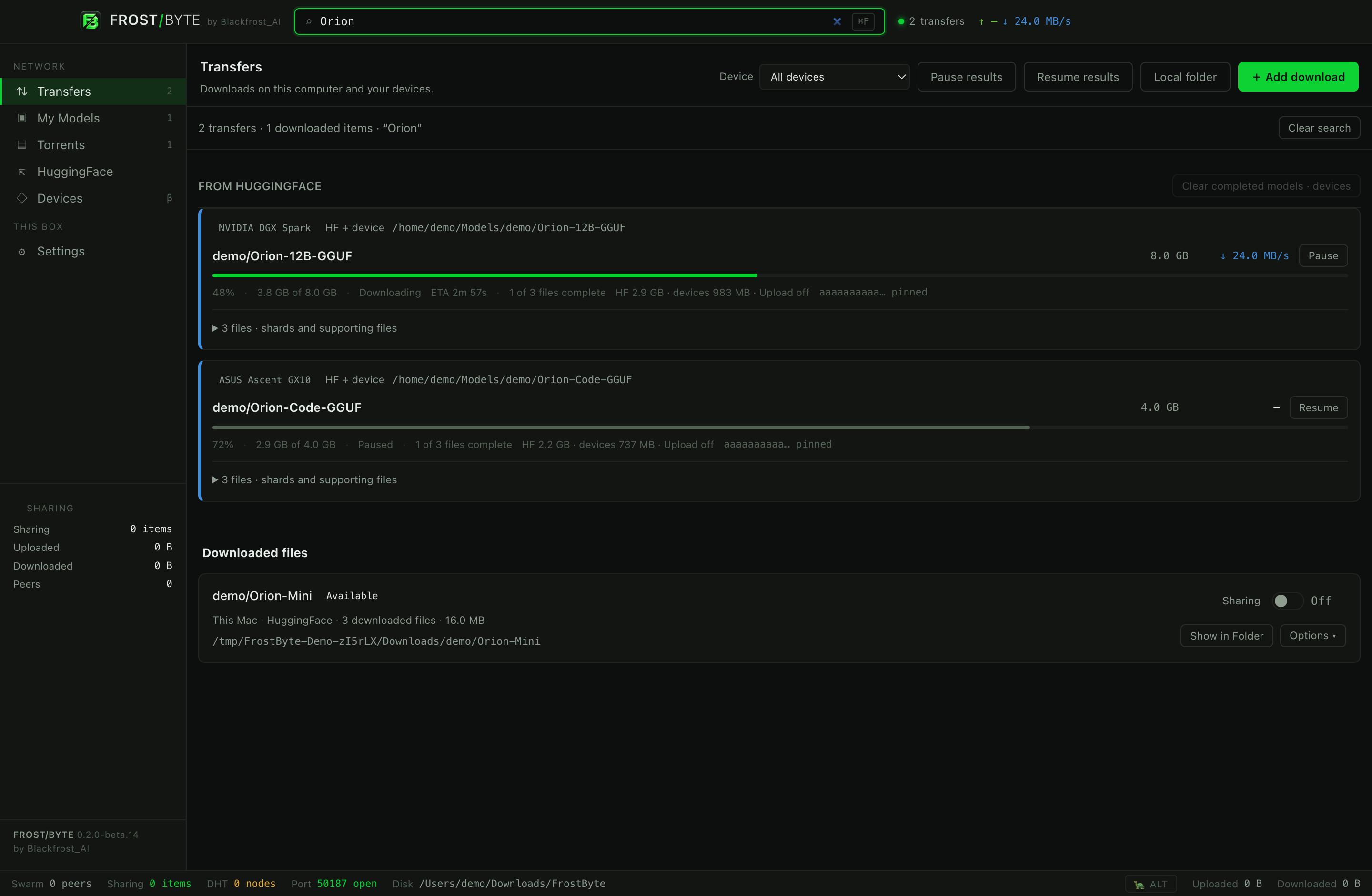
Pause or resume a model to control its unfinished files together, or expand it for individual file controls. With a search active, Pause results and Resume results act on matching transfers within the selected device filter.
Clear completed models removes fully completed cards while keeping downloaded files in My Models and preserving finished shards in models still downloading. Pause all and Resume all apply to the selected device filter. Queued jobs wait for an available download slot; a pause you choose stays paused.
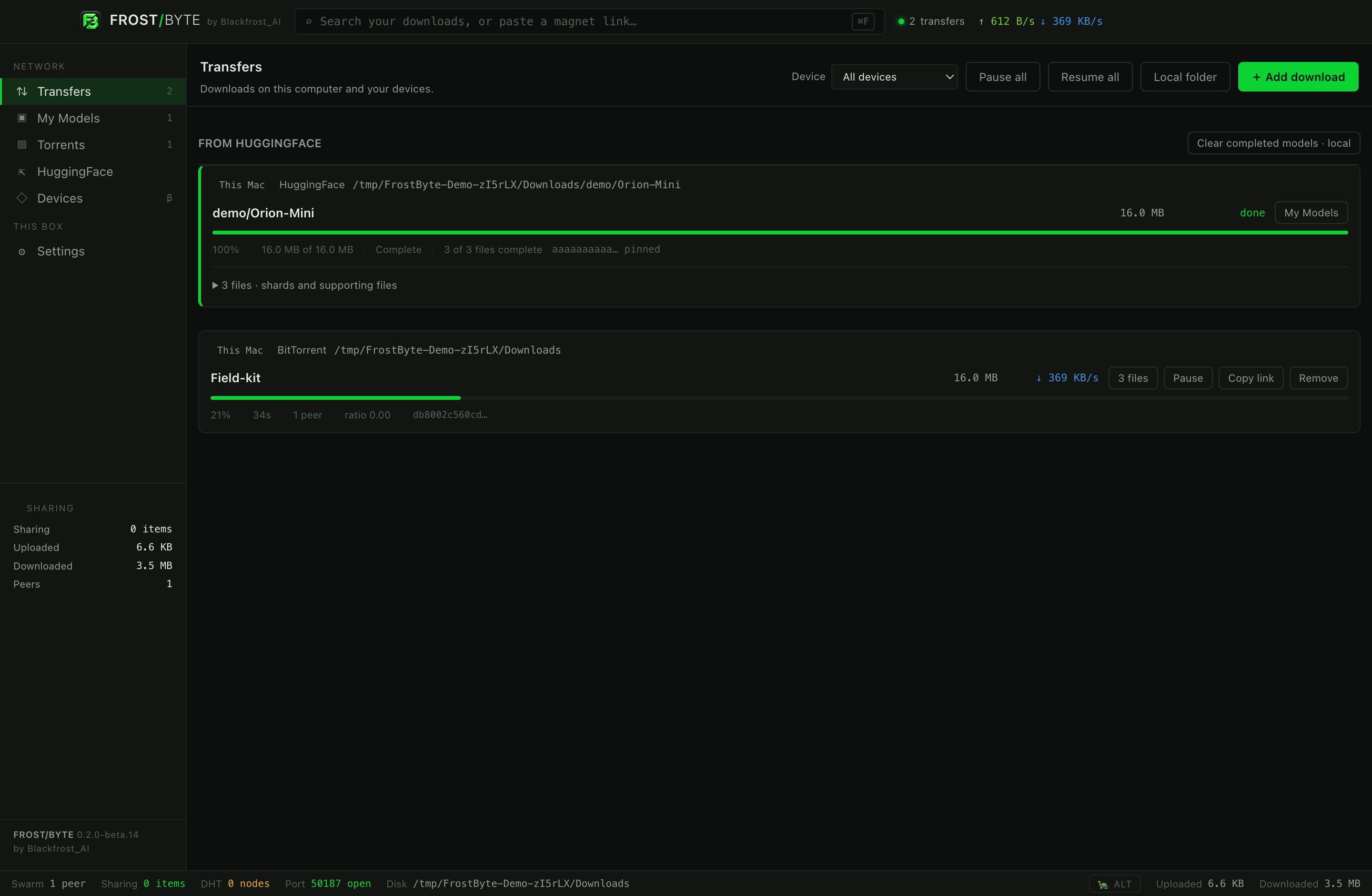
| Waiting for peers | No responding source currently has the metadata or pieces needed. Leaving the app open can allow a peer to arrive; there is no guaranteed completion time. |
|---|---|
| Paused / queued | Resume a user-paused job when ready. A queued job waits for a slot under the local queue settings. |
| Selected files complete | The files you chose are finished, even if the full torrent contains other files you skipped. |
| Storage unavailable | Reconnect the selected drive or choose a valid destination for a new download. Existing files are not automatically moved to another disk. |
| Access required | Check the publisher’s approval and your HuggingFace token. A restricted companion job may need Resume after the companion restarts to supply access again. |
Transfer history and downloaded-file inventory are separate. Clearing finished transfer history keeps the inventory. Review any remove or delete confirmation carefully; the effect depends on the action you choose.
06 / My Models, Torrents and sharing
My Models gathers model downloads. Torrents gathers other files, including documents, videos, software and archives. Both show file locations and the device that holds them. Search, sort and filter the lists to find an item, then use its available actions to browse files, show a local folder or copy a path.
If an item belongs in the other category, open Options and move it to My Models or Torrents. This changes its category, not its storage folder. Last-known device inventory remains visible when the device is offline, with an offline label.
Each supported completed item has a Sharing switch. Turn it on to offer those files to peers; upload speed, peer count and uploaded bytes become visible. Turn it off to stop sharing that item while keeping its files. BitTorrent sharing choices are remembered, and shared torrents offer a magnet link. IPFS collections offer a published IPFS link and start with sharing off again after restart.
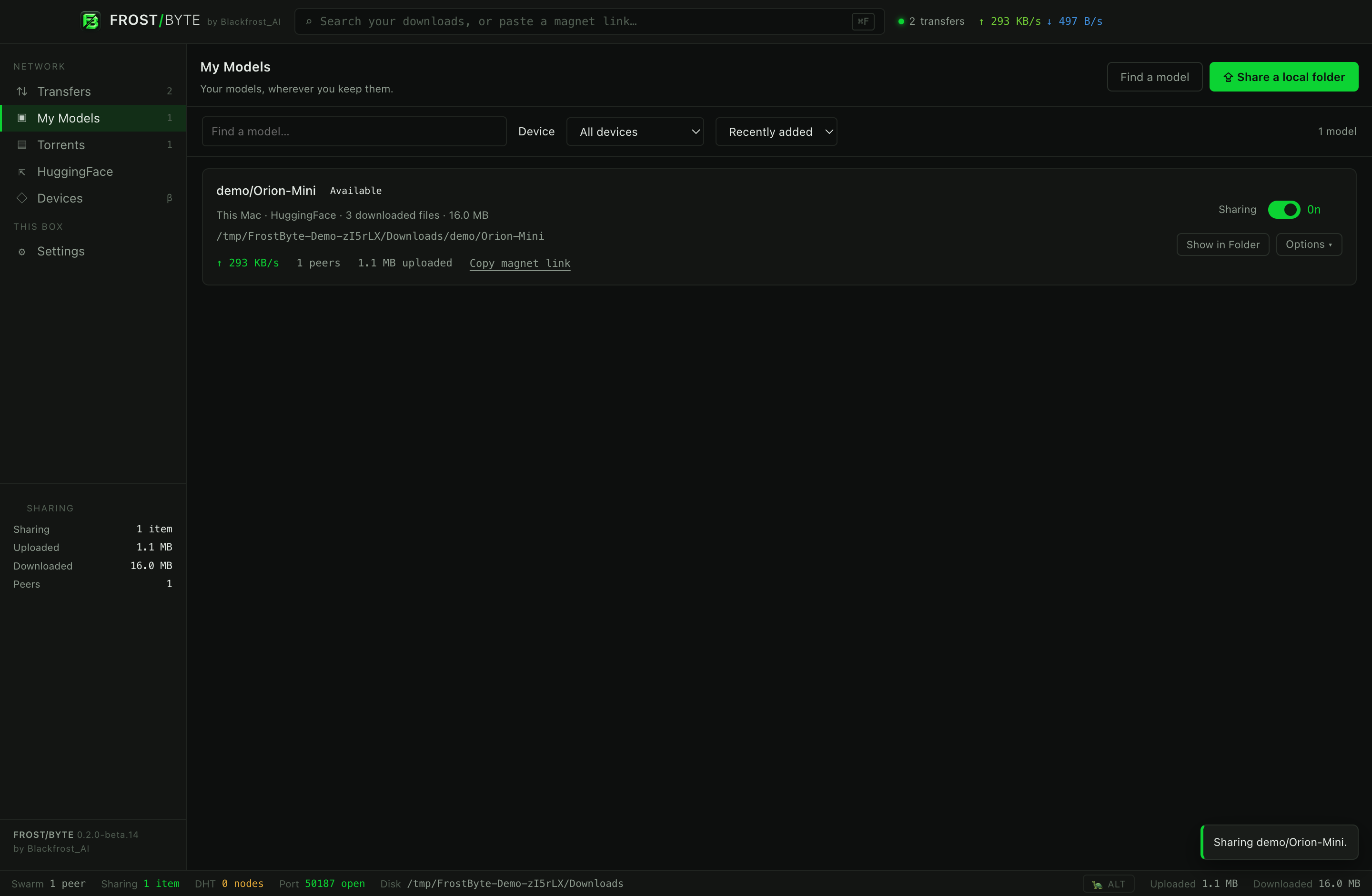
Review Settings → Queueing & Seeding for share-after-download and automatic seeding goals. Settings → Bandwidth provides local upload and download limits, plus alternative limits and a schedule. The turtle control switches the alternative limits on or off.
07 / Your Macs and DGX machines in Devices
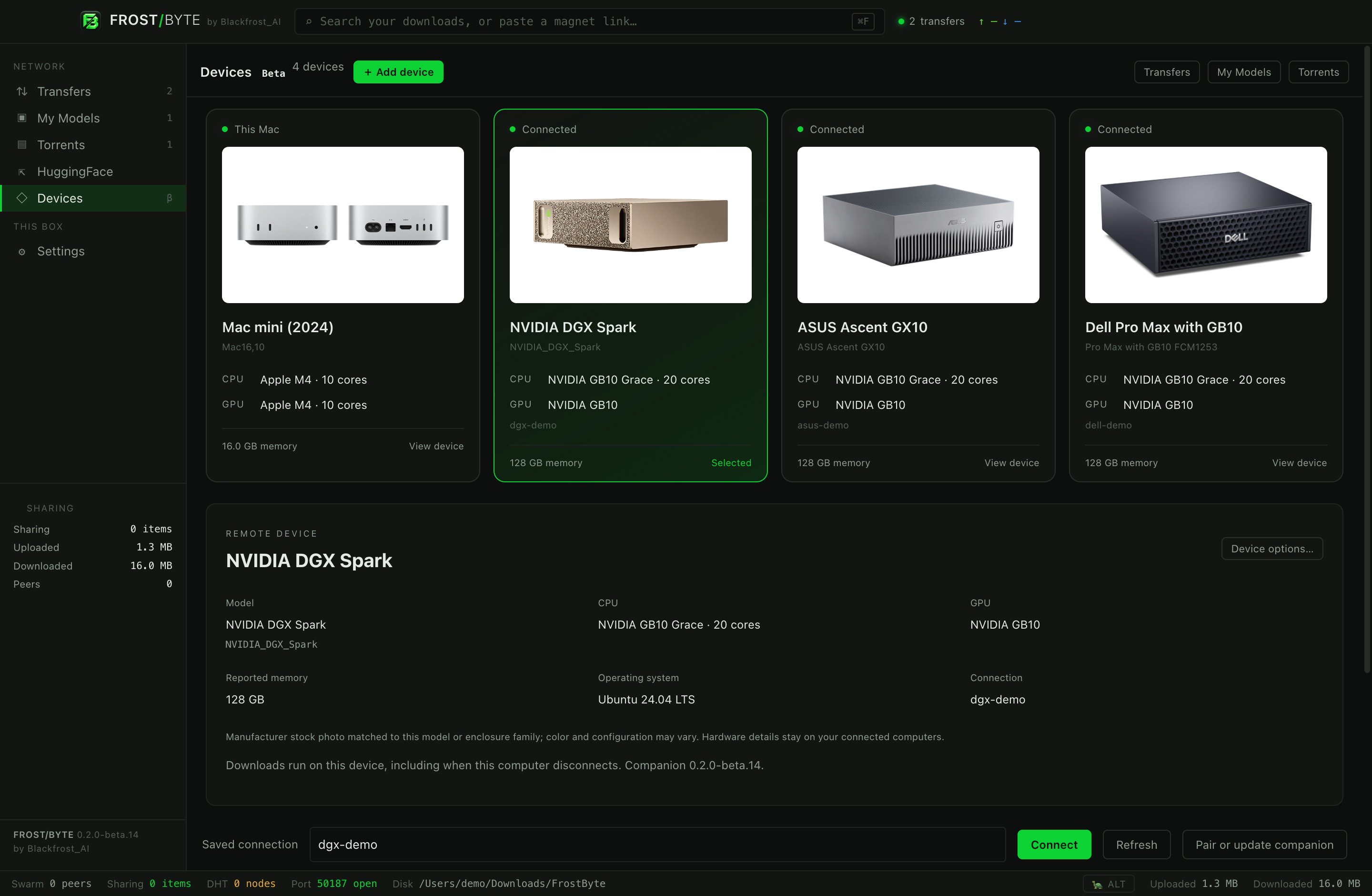
Devices shows this computer and up to 16 saved companions. Each remote machine does its own downloading while this desktop controls it over authenticated SSH. Keep the remote machine online and able to reach its sources. A Mac companion runs while its account is logged in and the Mac is awake. Local bandwidth and queue settings apply to local jobs.
Several devices can stay connected and download at the same time. Selecting a card changes which device you are viewing; it does not disconnect the others. Use the device filter in Transfers to follow one machine or view them all together.
Connect your own device
- Open Devices → Add device. Enter the remote computer’s hostname or LAN IP, account username and SSH port, or choose an existing SSH connection.
- Compare the displayed host fingerprint with the one on that computer before trusting it.
- Review the detected hardware and requirements. A Mac needs macOS 11 or later, Python 3, Remote Login for the chosen account, and that account signed in to the desktop. A Linux DGX needs Python 3 and Docker access. Setup does not enable SSH, install Docker or request administrator access.
- Choose one folder on the device. An external drive must already be mounted. First setup needs internet access and can take several minutes.
- Install the companion, or connect to a compatible existing one. Mac setup uses a native per-user service with its own pinned Node runtime; Docker and Frigid are not needed on Mac.
- Select this device and the intended folder in an HF or torrent review. Follow progress in Transfers, with a filter for each device. Completed items appear in My Models or Torrents.
Password setup creates a dedicated key for later access; it does not save the setup password. Saved keys use macOS Keychain or Windows DPAPI protection, and the approved host identity is checked on reconnection. Existing Spark connections migrate into Devices.
Hardware and matching images
Each card shows the machine model, CPU and detected GPUs, alongside reported memory. CPU and GPU core counts appear when available; logical threads are labeled separately if physical CPU cores cannot be read. The details panel also shows the hardware model identifier, manufacturer and operating system. Fixed GB10 specifications are labeled when used as a fallback. Free space comes from each selected filesystem; FrostByte does not assume every DGX has the same drive. Reported usable memory can be lower than a machine’s marketed capacity.
The photo catalog distinguishes NVIDIA DGX Spark, ASUS Ascent GX10 and Dell Pro Max with GB10. Apple cards use stock photos for the matched Mac mini, Studio, Pro, MacBook or iMac family. Windows uses a representative laptop or desktop photo while keeping the actual detected manufacturer, machine model, processor and GPU names. Stock photos do not identify your exact color or optional configuration; Mac Pro tower and rack can share a model identifier. Unknown hardware keeps its reported model and a neutral image. Device options lets you set a name or choose a different image.
Hardware collection does not read serial numbers, hardware UUIDs or MAC addresses. These hardware details travel only through your authenticated connection and are not included in optional diagnostics. Images are bundled locally and do not contact an image or serial-lookup service. Product photos and trademarks belong to their respective owners; they do not imply endorsement. Photo sources and credits are included with the app.
One destination per download
Each device remembers one default folder. Override it for an individual download if needed. Add folder registers a writable location and can restart that device’s companion. Registering multiple locations does not create duplicate downloads. Selecting another device or browsing another folder does not redirect an existing job or an open download choice.
A missing or replaced drive is unavailable; reconnect the same drive before resuming. The app does not substitute internal storage. My Models, Torrents and Transfers retain their owning device, even when another machine has identical model files or a torrent with the same hash. Offline devices show last-known information with controls disabled.
Updates and removing a connection
Device options → Update companion uses the saved connection. Setup stages its replacement, preserves registered storage and downloads, checks the new service, and restores the previous service if activation fails. A gated HF job may need Resume afterward to supply its access token again.
Forget connection removes only this desktop’s saved pairing. It does not delete remote files, stop the companion or revoke its remote authorized-key entry. Pair again to regain control. It is not a remote uninstall.
HF + device uses one selected companion’s already-shared, verified public files. Saved jobs retain that peer choice; unavailable or forgotten peers fall back to HF. This beta does not combine several companions into one hybrid download. Formatting or mounting drives, moving downloads between disks, arbitrary cache imports and GPU controls are outside the current scope.
08 / Privacy, diagnostics and useful feedback
Beta acceptance and diagnostics are separate choices. Automatic diagnostics are off by default; you can use the app without enabling them. Find the switch, report preview and feedback form in Settings → Privacy & Feedback.
- Optional health reports: app version, platform, OS kernel major version and approved counts of connection outcomes, timing ranges and errors.
- Excluded from those reports: model or download names, searches, file paths, URLs, torrent hashes, credentials and file contents. They have no stable device identifier or invite identity.
- Timing and retention: at most one small automatic batch every 15 minutes while the app is open. Unsent counters stay in memory for up to 24 hours and clear on quit or when reporting is turned off. Received diagnostic reports are scheduled for deletion after 30 days; deletion can occur later.
- Your written feedback: a category and message are required. Email and a one-time diagnostic attachment are optional. Review the prepared report before sending. No logs, screenshots or recordings are automatically attached. Feedback is scheduled for deletion after 90 days, with cleanup potentially later.
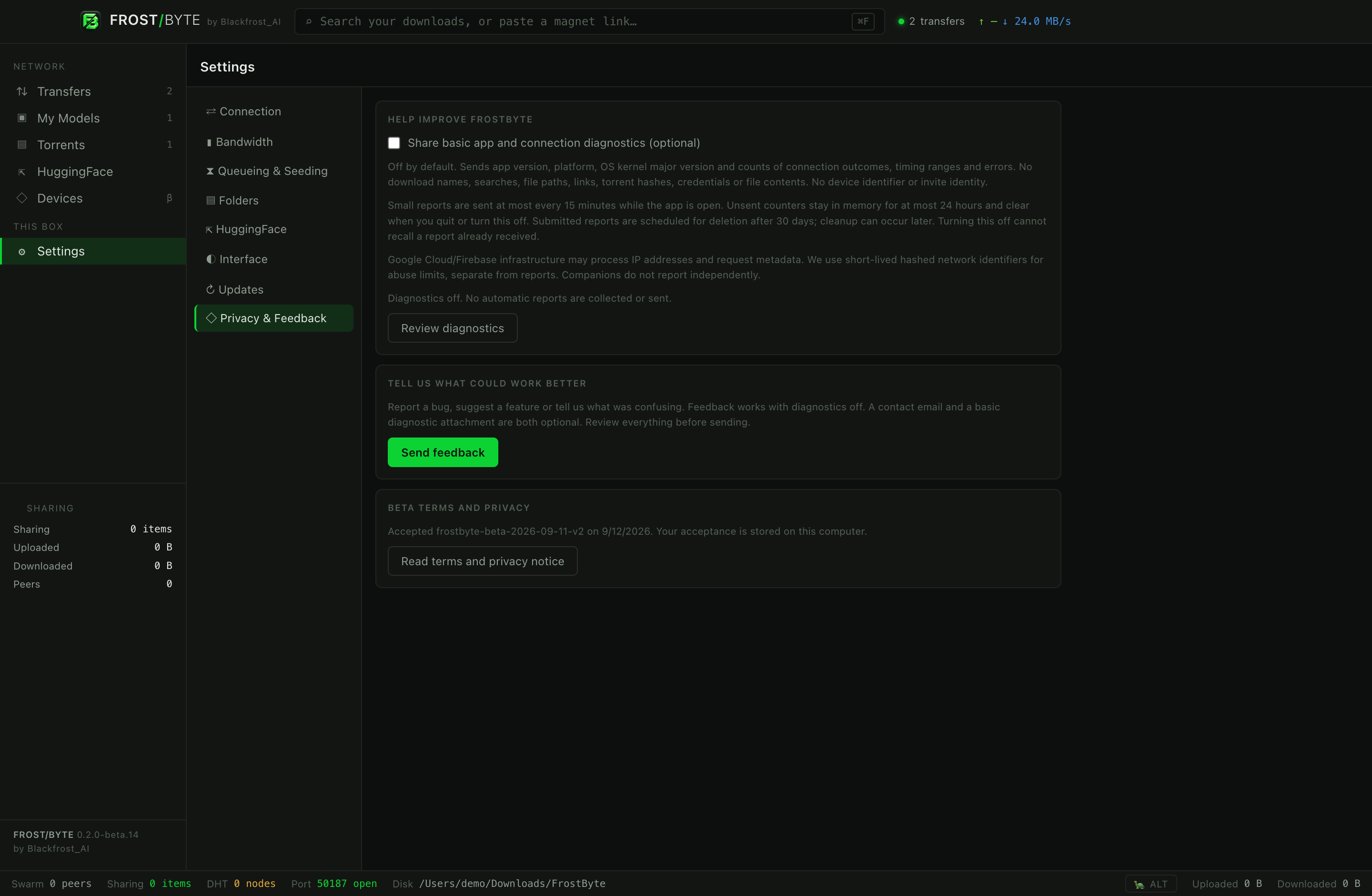
Turning diagnostics off stops future automatic collection and clears pending automatic reports; it cannot recall a report already received. A one-time attachment does not enable automatic reporting. Companions have no independent reporting client. Reported hardware details stay on your connected computers and are not added to diagnostics.
For a useful bug report, describe the steps, expected result and what happened, and include the app version and operating system. Leave out tokens, SSH keys, passwords, invite codes and private filenames. Text you type into feedback is sent as written.
Prefer a public discussion? FrostByte on GitHub has forms for bugs, feature requests, documentation corrections and setup questions, with a roadmap and issue statuses you can follow. GitHub issues and attachments are public; review them for personal details before posting. In-app feedback stays in the separate private feedback service and is not automatically posted to GitHub. Use the repository’s private security-reporting link for suspected vulnerabilities.
Normal networking still involves IP addresses: peers, HuggingFace and hosting infrastructure process connection information. Read the full Privacy Notice for the app, download service and reports. This guide does not replace it.
Optional publisher identity
Settings → Publisher can create or restore a local identity. Choose a password, save the recovery phrase privately, and confirm your backup. Setup remains pending across restarts until the backup is confirmed. The app protects the key with your password and the operating system key store; recovery views hide after one minute or when you leave the screen.
Anyone with the recovery phrase can restore the same identity. Keep it out of screenshots, support requests and shared clipboards. Creating an identity does not publish your files or create a community listing. Frost-Net discovery remains planned.
09 / Install and update the public beta
| Mac | Apple silicon / ARM64. Open the DMG and drag FrostByte into Applications. The ZIP contains the same app as an alternative. |
|---|---|
| Windows | x64. Run the per-user setup executable. A ZIP build is also offered. |
| Remote companions | Optional Apple silicon or Intel Mac (macOS 11+), or Linux ARM64/x64 DGX with Docker. Pair through Devices over SSH. Mac companions require an awake, logged-in account and Python 3. |
For a desktop update, quit the older app, keep a backup of anything important and install the new build. Normal upgrades preserve the app profile and downloaded files. The download desk lists the current version, file sizes and SHA-256 checksums.
The public beta is open to everyone. Review the Beta Terms and privacy notice at the download desk; no invite code, account or email signup is required. The browser remembers acceptance for up to 72 hours. Beta.16 retains its original v3 welcome notices: their older invitation wording is superseded by the website’s public-beta access notice. The app remains proprietary, with third-party licenses preserved. Share the official download page or GitHub page so people receive the current verified builds.
10 / When something needs attention
- My model is finished. Where is it?
- Open My Models, select the correct device filter and check the listed path. Remote downloads stay on their selected device. Clearing finished history does not copy them to your desktop or erase their inventory entry.
- There are no peers.
- The source may be offline or have no available seed. Check the source and your connection, or wait for a peer. FrostByte cannot create missing metadata or file pieces.
- A HuggingFace model is restricted.
- Complete the publisher’s access process and validate your token in Settings. A token alone cannot grant rights that the publisher has not approved.
- A device will not connect.
- Check that it is powered, reachable on your LAN and accepting SSH for the username you supplied. Verify its identity and use the requirements check. Do not approve an unexpected host-key change without checking the device.
- An external drive is missing.
- Reconnect the selected drive and confirm it is mounted on the selected device. The destination is intentionally not switched to another disk. Review the job before resuming.
- A download completed but the model will not run.
- Check the model publisher’s required files, supported runtime, format and memory requirements. FrostByte handles file delivery; it does not validate inference compatibility.
- I found a bug or confusing control.
- Search existing public reports or open a guided issue. For private feedback, use Help or Settings → Privacy & Feedback in the app. Review the report before sending. Automatic diagnostics can remain off.
11 / What to expect from this beta
FrostByte is evaluation software. Download completion depends on the source, peers, network, storage and any publisher access rules. It does not certify third-party files as safe. Keep backups and inspect unfamiliar content before opening or running it.
- Desktop builds cover Apple silicon Mac and Windows x64; Intel Mac and Windows ARM64 builds are not included.
- Production signing and notarization are pending.
- Broad clean-machine compatibility, multiple hardware generations and sustained network/load testing remain areas for further testing.
- The app is a download and sharing client with optional Mac and DGX companions. Model execution, GPU controls and general system administration are outside its scope.